Audio - Do you follow a workflow to enhance audio before exporting your video?
Loading last updated info...
Background noise, hums, and echoes can make even the most professional-looking 4K video feel amateur. Ensuring crystal-clear audio is a non-negotiable step in the post-production process.
The Pain
Raw recordings often contain environmental noise (AC hum, traffic, or white noise) or "roominess." If you export without treating these:
- Viewers will find the content distracting or tiring to listen to.
- The brand's perceived quality drops.
- Captions/Subtitles (AI-generated) will be less accurate.
The Solution: The 3-Tier Enhance Workflow
Depending on the severity of the noise and the importance of the project, use one of these three tools:
Level 1: Low Noise (Premiere Pro - DeNoise)
Best for constant, low-level background hiss (e.g., subtle fan noise).
How to
Go to Effects | Search for DeNoise | Apply to clip.
Tip: Keep “light” level to avoid muffled voices.
Level 2: Moderate Noise (Premiere Pro - Essential Sound)
For "roomy" recordings, distant voices, or noticeable environmental distractions.
How to
Open the Essential Sound panel | Tag clip as Dialogue | “Enhance” | Auto-Match.
Tip: Keep the slider around 1. (e.g. 1.1 as shown in the screenshot) Over-processing here can make voices sound "robotic" or "underwater."
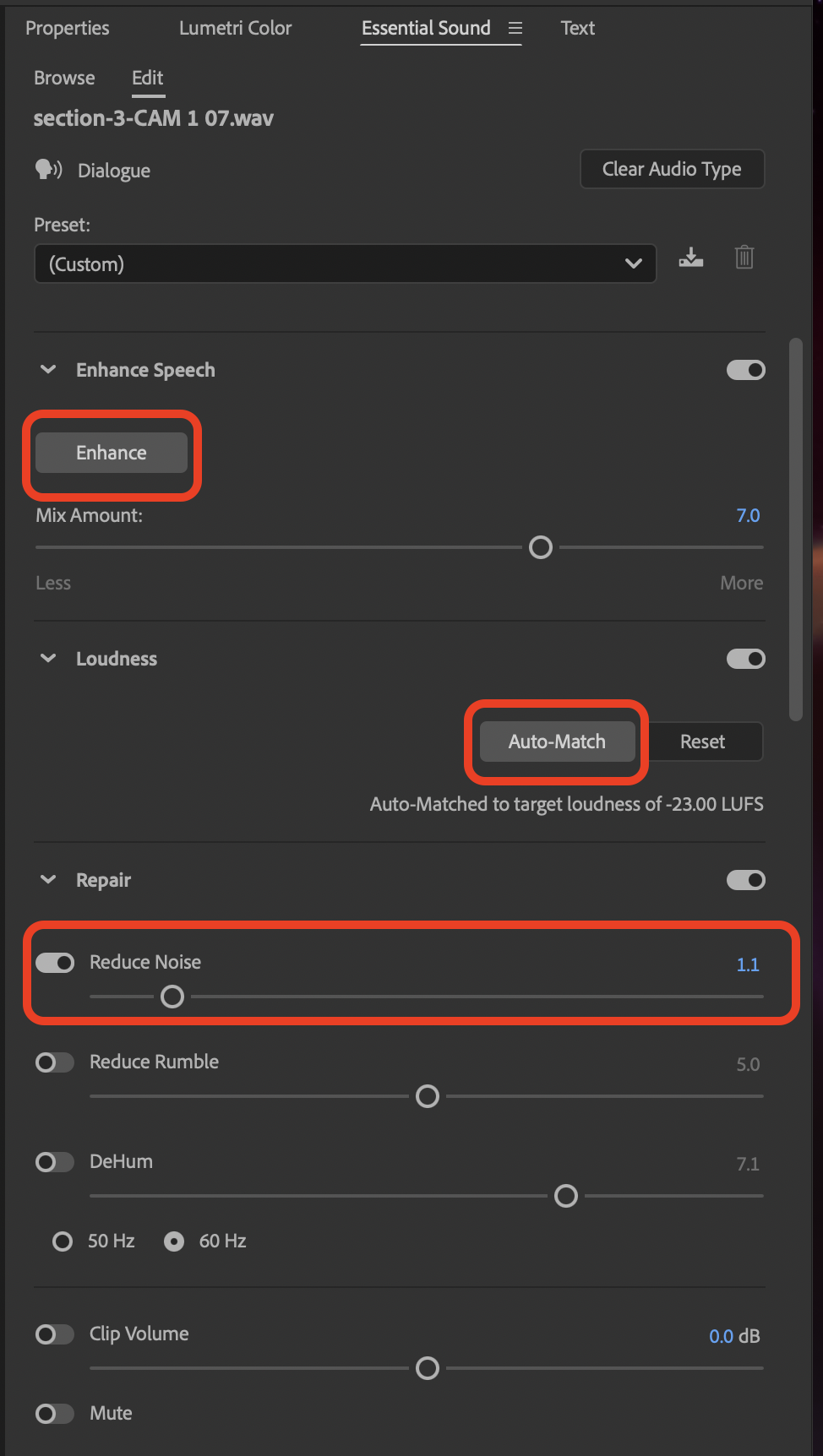
Figure: Click the option step by step
Level 3: Severe Noise (Adobe Podcast AI Enhance)
Best for saving "ruined" audio or recording in very noisy environments.
How to
Export audio as WAV/MP3 | Upload to Adobe Podcast Enhance | Re-import and sync.
Tip: Use WAV for the best reconstruction quality.